

xili picks one photo at random from your gallery. For the shuffle to work properly, it needs access to ALL your photos. Limited access only lets xili pick from photos you chose yourself.
Permissions help
Give xili full photo access
Choose full access
Select All Photos on Android or Full Access on iPhone. With limited access, you cannot shuffle, post, or unlock your friends’ feed.
Your gallery stays on your phone. The shuffle happens on your device, and xili only uploads the photo you decide to publish.
Android
Open xili’s permission settings and allow the whole gallery.
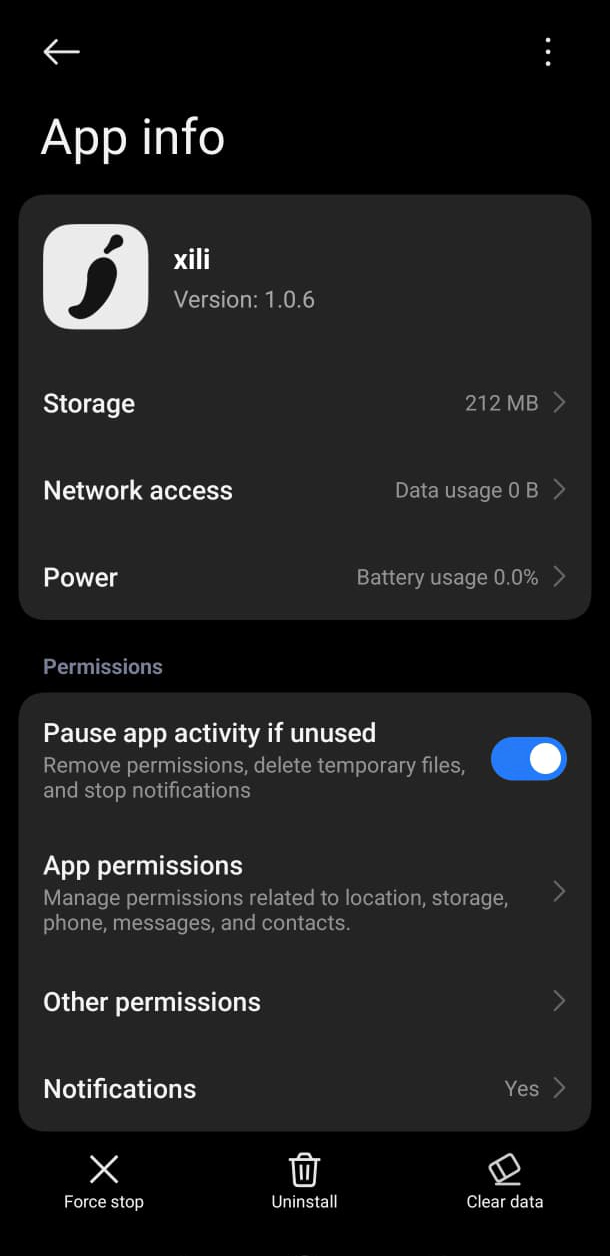
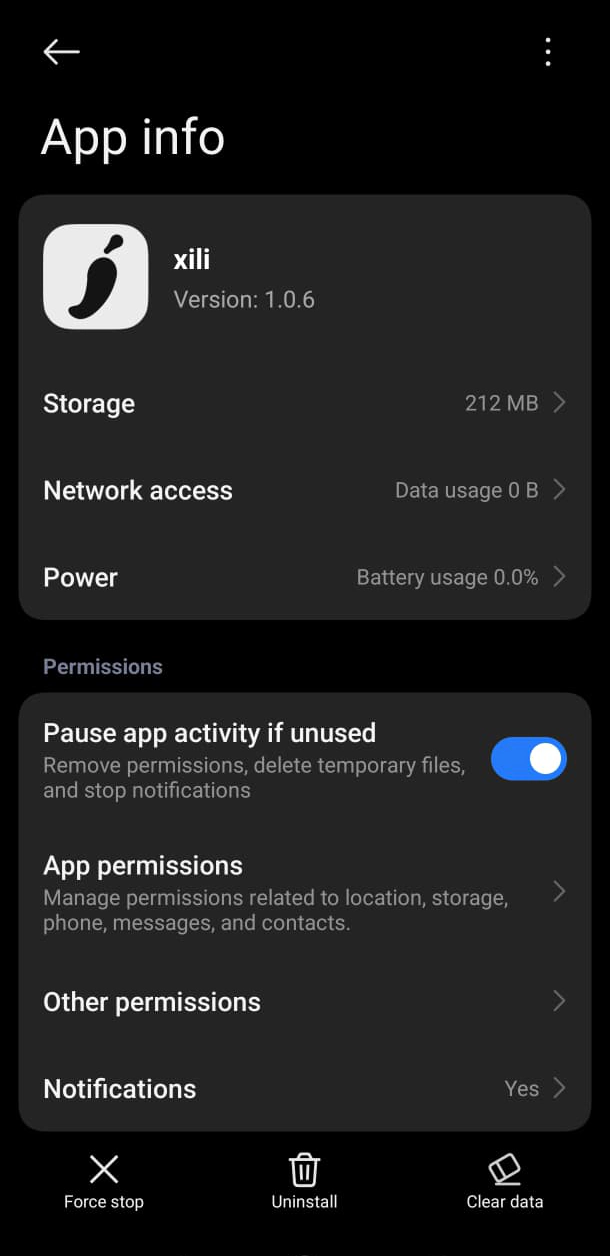
Open xili’s app info
Go to Settings → Apps → xili, then tap App permissions.
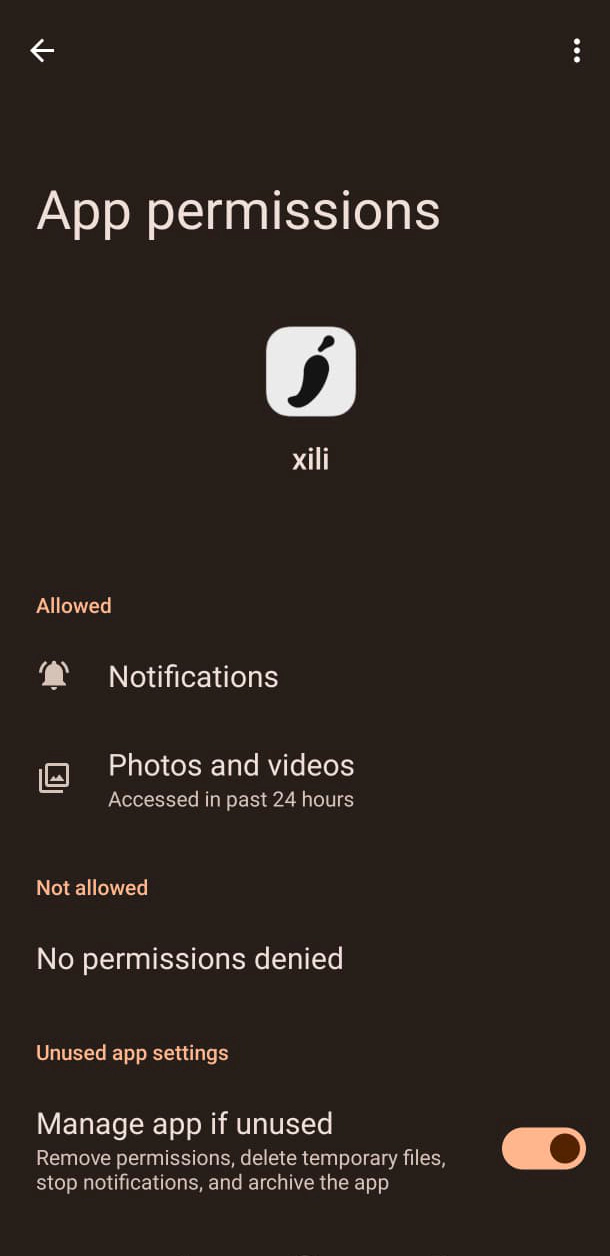
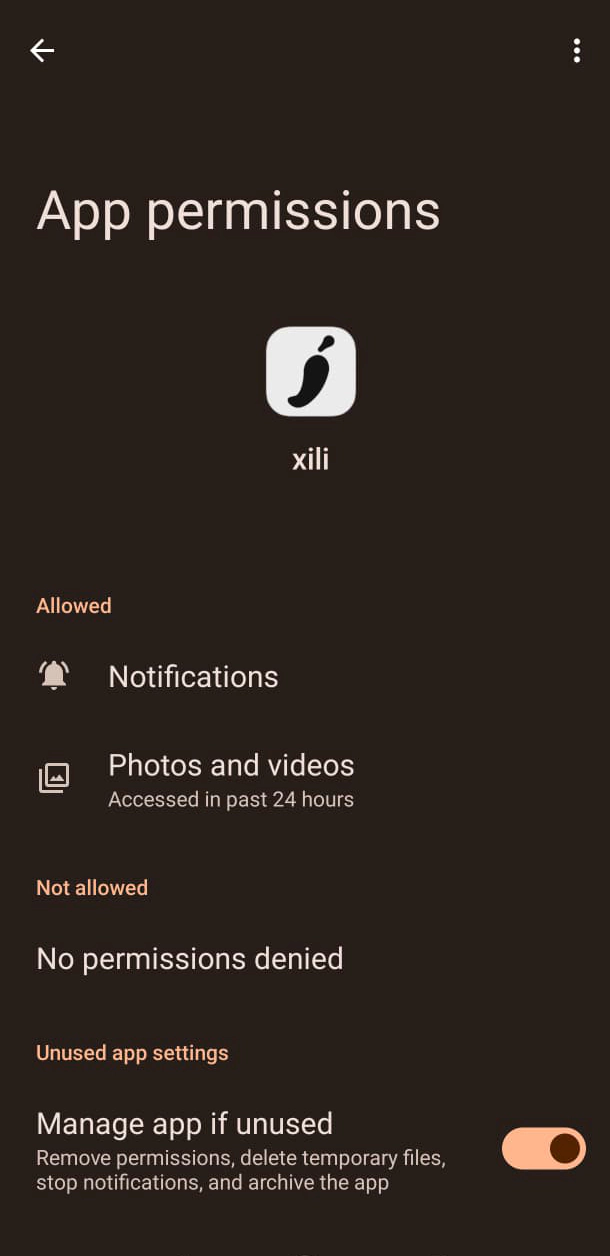
Open Photos and videos
Tap Photos and videos in the permissions list.
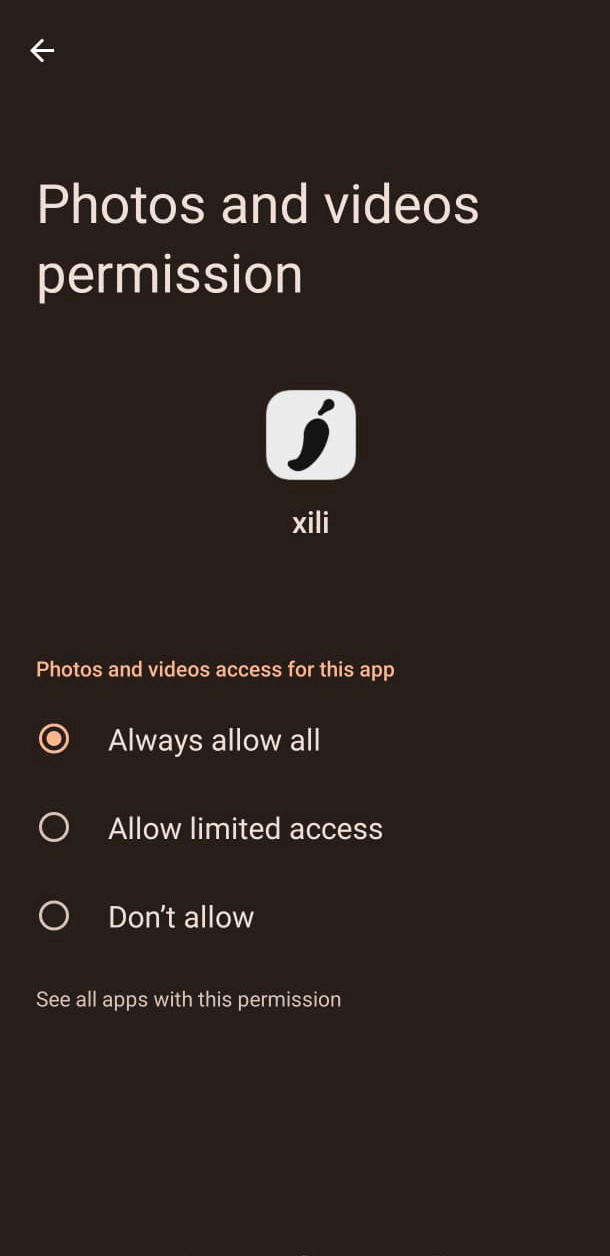
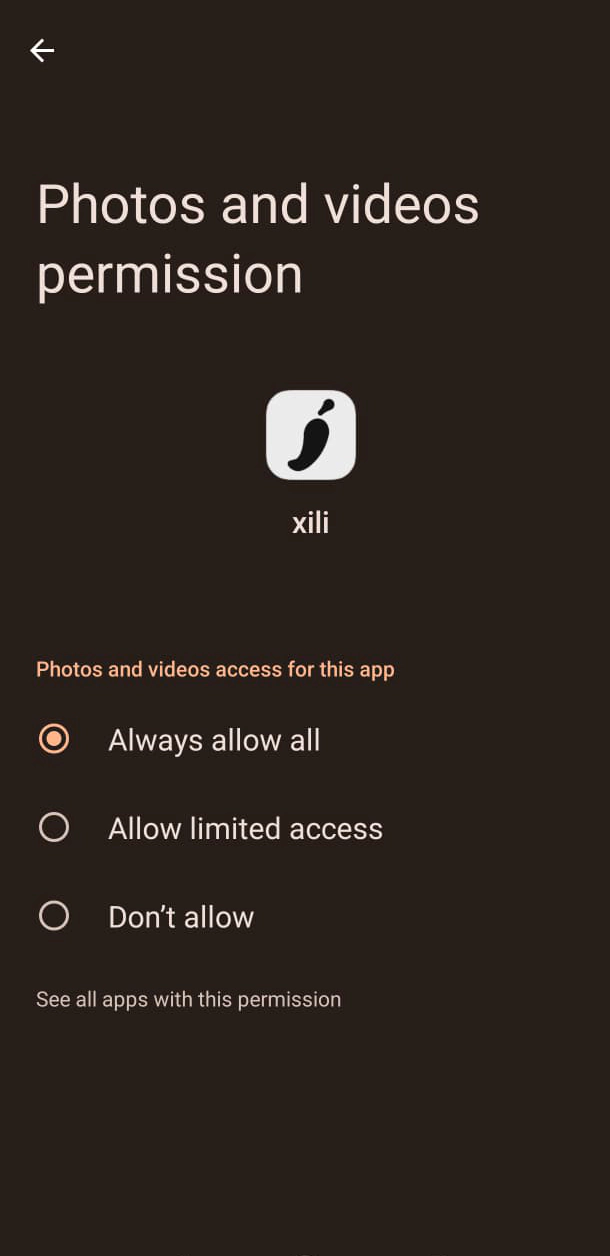
Allow all
Choose Always allow all. Do not choose limited access.
iPhone (iOS)
Give xili Full Access to your photo library.
Open Privacy & Security
Open Settings, then tap Privacy & Security.
Find xili under Photos
Tap Photos, then select xili.
Choose Full Access
Select Full Access, not Limited Access.
Menu names may vary slightly depending on your phone and software version.